Inbox
The Inbox is where all your notifications across all projects land. Open it by clicking the bell icon in the top-right corner.
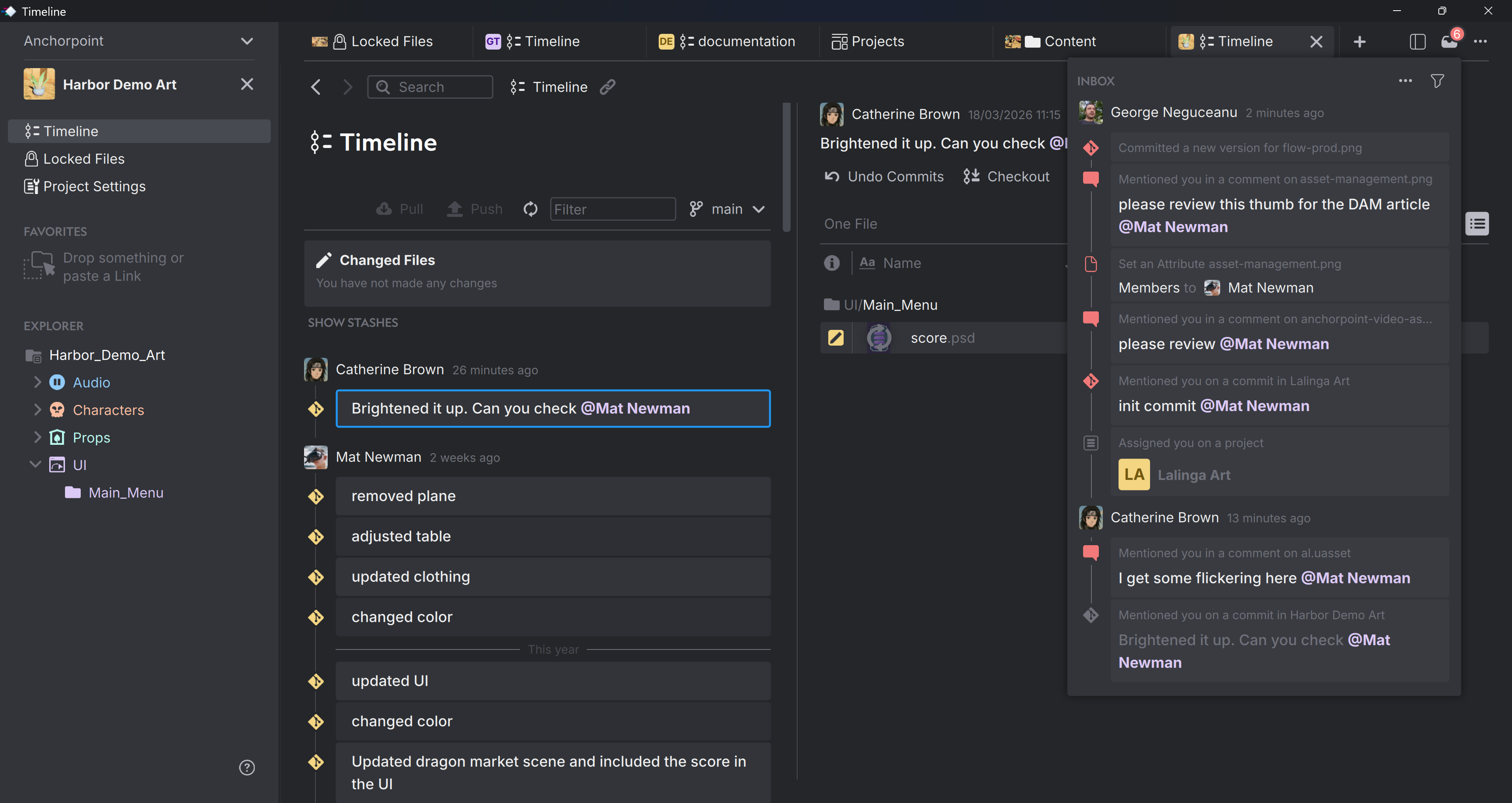
When You Get Notified
- Commit — a team member mentions you in a commit message. Click to jump to that commit in the Timeline.
- Review — someone mentions you in a review comment.
- Member Attribute assignments — you're assigned to a file, folder, or task. You're automatically subscribed and notified about all future activity on it. If no Member Attribute exists yet, Anchorpoint creates one and assigns you.
- Project assignments — you're invited to join a project.
- Subscription — a new version of a file you're subscribed to has been committed.
A note on commits
Once you are mentioned in a commit, Anchorpoint prepares it by downloading all binary files before you receive the notification. When you click the notification and pull the commit, the pull is much faster because your large files have already been downloaded.
Managing Notifications
Read and Unread
- Unread notifications show a colored icon.
- Click a notification to mark it as read automatically.
- Use Mark All as Read to clear everything at once.
- Notifications are auto-marked as read after 10 days.
Archiving
- Archive individual notifications via the context menu.
- Use Mark All Read as Archived to bulk-archive reviewed items.
- Archived notifications are hidden by default but accessible via Show Archived.
- Auto-archived 30 days after being read; permanently deleted after 2 months.
Filtering
- Unread only — show only unread notifications.
- Show Archived — include archived items in the view.
- Notifications are always sorted newest-first.
Subscriptions
Subscriptions are indicated by the bell icon in the sidebar of a file or folder. You're automatically subscribed when someone assigns you via an Attribute or mentions you in a review. This means you'll be notified each time a change or comment appears on that file. Click the bell icon again to unsubscribe.
System & Email Notifications
You can enable or disable system notifications (the popups in the bottom/top-right corner) and email notifications for when Anchorpoint is not running.
- Push notifications (desktop popups for @mentions): toggle Enable Push Notifications in Application settings.
- Email notifications: toggle Enable Email Notifications in Application settings to receive updates while Anchorpoint is closed.