File storage
The Lore server holds every file of your project and its whole history. The project folder on your computer holds the files you work on. Usually that is all of them, but you can choose to keep only a part of the project on your computer and leave the rest on the server.
View filter
To save storage space, you can choose which folders and files of a Lore repository are on your computer. This is useful if, for example, the repository holds art assets and you only work on code. The setting is called the view filter. Think of it as a window onto the repository: everything outside the window stays on the server, and you can move the window at any time.
Excluding a file only removes it from your hard drive. It stays in the repository and in the history, and your team members are not affected. The view filter is stored on your computer, in the file .lore/view of the project, and is never shared with your team.
Exclude and include
In the Browser page, right click on a folder or a file and choose View filter. To change several entries at once, select them first. The same menu is available in the folder tree.
- Exclude folder / Exclude file: Removes it from your hard drive, so you can include it again later.
- Include folder / Include file: Downloads it. For a folder, this includes all of its subfolders.
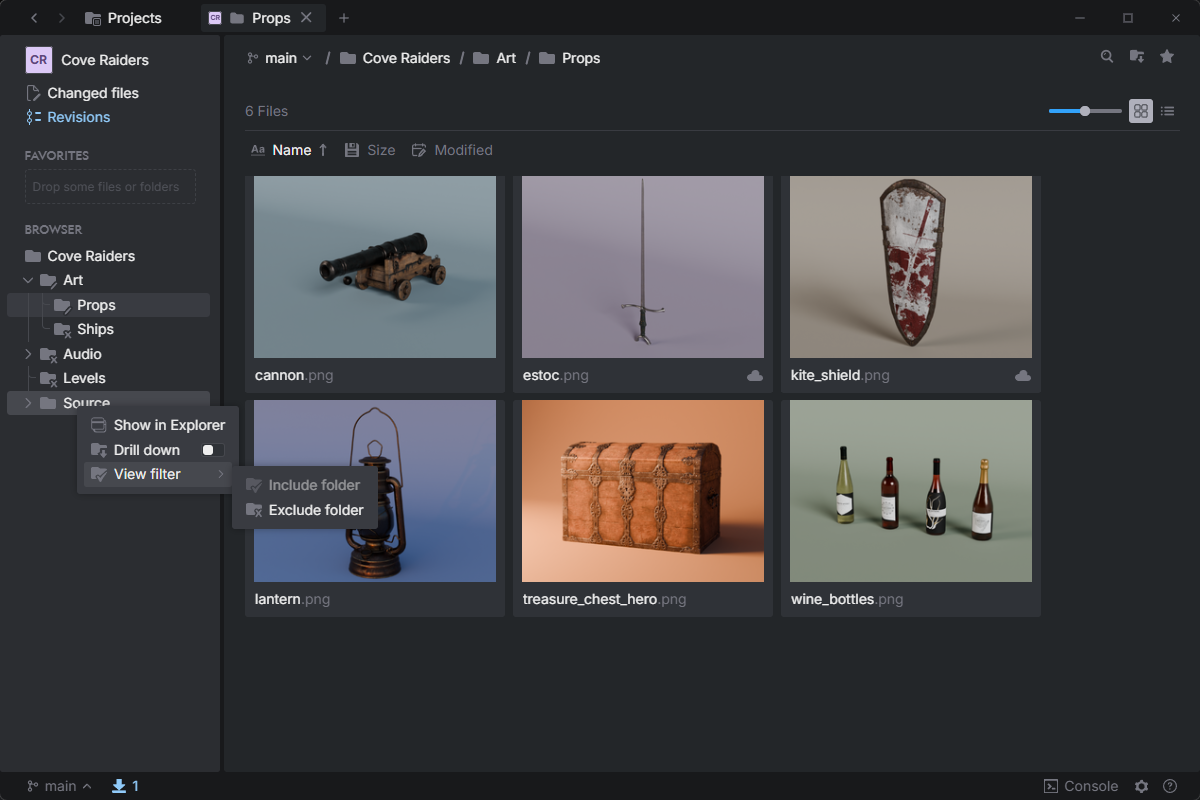
An entry that does not apply is greyed out: you can only include what is excluded, and only exclude what is on your hard drive. Files offer the menu while they have no changes.
To download everything again, right click on the project at the top of the folder tree and choose View filter > Include folder. After you confirm, Anchorpoint clears the view filter and downloads all files. The command is only offered while something is excluded.
Excluded files are marked
Excluded files and folders show a cloud icon. A folder of which only some files are excluded shows a cloud icon with a strike through. Hover over the icon to see what it means.
Anchorpoint does not download a file just to draw its preview picture, so an excluded file usually shows its file-type icon instead. Include the file to see its preview or to open it.
Before you exclude
Anchorpoint refuses to exclude a folder or file that has changes, including new files you have not committed yet, because they would be hidden from your changed files. Commit or revert them first. It also refuses to exclude a folder or file that holds no files of the repository, for example a new folder you have not committed yet, or a folder whose content a rule in .loreignore leaves out. Excluding it would not remove anything from your hard drive, it would only hide the folder from Anchorpoint. The project folder itself and the .ap folder cannot be excluded. The exclusion also stops while a merge is in progress and while you preview another branch.
If another program has one of the files open, the exclusion stops with a message that names the file and the program. The files Anchorpoint has already removed show as deleted in your changed files until you exclude again. Close the program, exclude again, and do not commit those deletions.
Download only part of a repository
When you clone a Lore repository into an empty folder (New project > Import an existing repository), the second page of the dialog shows Clone settings with the checkbox Download whole repository. It is on by default. The Join project dialog shows the same checkbox once you choose an empty folder, both when you join a project of your workspace and when you download a project again whose folder is missing (Select project folder). A folder that already holds files is always downloaded whole. Switch it off to download only the .ap folder, where Anchorpoint keeps its own data, and the .loreignore file. Every other file and folder of the project is listed with the cloud icon, but it is not on your computer, not even as an empty folder. Include the ones you need afterwards. A file or folder that you create in the project folder later is not affected, and you can commit it as usual. A repository without commits can be cloned with the box off as well. Nothing is left out then, so the project behaves like a full download: when a team member pushes the first commit, all of its files come to your computer the next time you sync.
A folder that you or another program create directly in the project folder later is not part of the view filter. Its files show up in your changed files and you can commit them. A folder that another program creates inside a folder you excluded is excluded as well. The view filter only names the folders you excluded, so a folder that a team member adds to the project folder or renames, or that another branch has, is downloaded in full the next time you sync or switch to that branch. New files that a team member adds inside a folder you excluded stay on the server until you include the folder.
Dropping files into an excluded folder
When you drag files from your file explorer into an excluded folder, Anchorpoint includes them automatically, so they show up in your changed files and you can commit them.
Rules you wrote yourself
Rules you wrote yourself into .lore/view stay as they are when you exclude or include a folder or file. Clearing the view filter with Include folder on the project removes all rules, yours included.