Reviews
Next to displaying a variety of file formats, Anchorpoint can compare files between versions, so you can review the work of yourself, your team members and agents. Next to a visual representation of a file, you can also inspect changes in metadata, such as the length of a video or the polygon count of 3D model.
Viewing and comparing files
Anchorpoint shows files in two places. The sidebar on the right is for quick looks while you browse. The overlay is a large view on top of the application for detailed reviews. Hover over a file and click on View to open it, or right click on it and choose Properties and history or View in overlay. In the Browser page, pressing Space opens the highlighted file in the sidebar.
Files that have changed offer a Compare button as well. On the Changed files page it compares your current file with the last committed version. On the Revisions page it compares the file with the version before that revision. In a list of changed files, pressing Space opens the comparison in the overlay.
At the top of the preview you switch between View file and the comparison modes that are available for the file type:
- Compare slider: Both versions lie on top of each other and a draggable divider reveals one or the other. Ideal for spotting small changes in images, videos and 3D models.
- Compare side-by-side: Both versions next to each other. Zooming, panning, playback and camera movement are mirrored between the two.
- Compare unified and Compare split: Line by line comparison for text-based files.
Below the comparison, a Before and After panel lists the metadata of both versions. Only the values that differ are shown, colored red for the old and green for the new value. Depending on the file type this includes the resolution, length, frame rate, codec, sample rate, page count, or the vertex and polygon count. The sidebar also has a Properties section with the size and modification date of the file.
To compare two different files instead of two versions of the same file, open the file in the overlay, click on the options menu and choose Compare to. You can only compare files of the same type.
File history
Every revision that changes a file adds a version of it, like a save slot in a game. The file history shows who changed a file, when and why. Open a file in the sidebar: hover over it and click View, or right click on it and choose Properties and history. Below the properties, the History section lists every version of the file, newest first. Once Anchorpoint has read the history back to the first version, the heading shows how many versions there are.
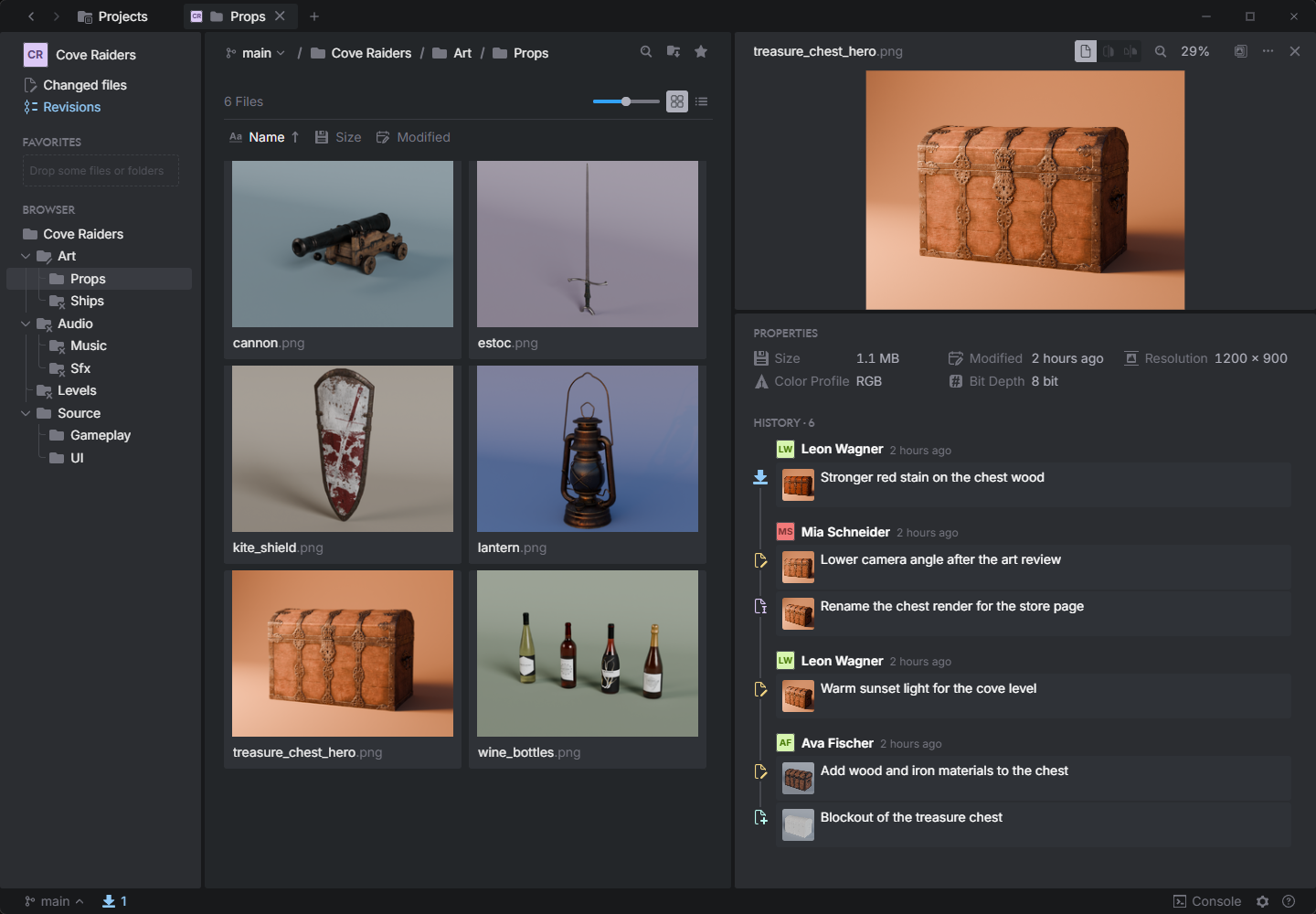
Each version shows who made the change, when, and the revision message. Next to the message is the version's thumbnail. File types without thumbnails, such as text files, show the message only. To stay fast, Anchorpoint only creates thumbnails of older versions for files up to 5 MB. Versions by the same person in a row are grouped under one name.
The icon on the left of a version tells you what it did, or where it stands. Hover over it to see its meaning.
- Added, Modified, Deleted, Renamed or Moved: What the version did to the file. Your team has this version too.
- Merge icon: The version came in through a merge, for example when a sync combined your work with your team's.
- Upload arrow: You committed this version but have not pushed it yet.
- Download arrow: A team member pushed this version and you have not synced it yet.
Under the message, Deleted marks the version that deleted the file. Anchorpoint follows a file through renames and moves, so the versions from before the rename are in the list as well.
Compare a version
Click a version to see it in the sidebar. To compare it with the version before it, hover over it and click Show in overlay. At the top of the overlay you switch between the comparison modes of the file type and View file. While the overlay is open, click another version to switch to it. A version that renamed the file or moved it to another folder offers Moved or renamed instead, which shows where the file was moved from and to. The first version has nothing to compare with, so it only offers View file. When you open a file from the Revisions page, the version of that revision is highlighted and the list scrolls to it.
Restore version
Right click a version and choose Restore version to bring it back:
- Overwrite: Replaces the file on your computer with that version. If you have modified the file, your changes that you have not committed yet are lost.
- Keep Original: Leaves your current file alone and puts the old version next to it, with
_restoredadded to its name. You can open both files side-by-side to merge parts of them.
Restored files show up in your changed files, so you can commit them. If the version was saved under an older name of the file, Anchorpoint restores it under the current name. You cannot restore a version that deleted the file, or a version you have not synced yet. To restore several files of one revision at once, use Restore on the Revisions page.
Show in revisions
Right click a version and choose Show in revisions to jump to the revision that created it. Anchorpoint opens the Revisions page, scrolls to the revision and selects it, so you can see what else changed with it.
Supported file formats
Image
Anchorpoint displays PNG, JPEG, GIF, WebP, SVG, BMP, AVIF, Photoshop (PSD, PSB), EXR, HDR, TGA, TIFF, HEIC, RAW camera formats such as CR2, NEF, ARW and DNG, as well as AutoCAD DWG drawings. All of them are rendered at full resolution, so you can zoom into the details of a 4K texture or a large Photoshop document.
Images can be compared with the slider and side-by-side. If two versions have different sizes, they are shown at their real proportions and not stretched.
Display options:
- Zoom: Use Ctrl+Mousewheel to zoom at the cursor, or pick Fit to screen (Ctrl+0) and 100% (Ctrl+9) from the zoom menu in the header. A double click toggles between fit and 100%. Drag with the mouse to pan. Above 100% the pixels are shown sharp, so pixel art and icons stay crisp.
- Background: Right click on the image in the overlay to choose a White, Grey or Black background and to switch Transparent areas on or off. This helps reviewing textures with alpha channels.
3D model
Anchorpoint has an interactive viewer for FBX, OBJ, GLB, glTF, STL, PLY, USD (USD, USDA, USDC, USDZ) and STEP files. Models are converted in the background the first time you open them. Orbit with the left mouse button, pan with the right mouse button and zoom with the mouse wheel.
Two versions can be compared with the slider and side-by-side. The camera is synced between both versions, so when you orbit one model, the other follows. Both versions open with the same framing, and Center view re-frames them together. Because the two versions share one options menu, they are always shown with identical settings.
The options menu in the header offers:
- Shading: Material shows the model with its textures. Wireframe shows the topology. Clay shows the model in a neutral grey material to judge the shape. Normals colors the surface by its normal direction to spot shading errors. UV checker applies a checker pattern to review the UV layout for stretching.
- Grid and Axis gizmo: Show or hide the floor grid and the axis indicator in the corner. Clicking on the gizmo resets the camera.
- Up axis: Switch between Y up, Z up and X up if a model from another application appears tilted.
- Center view: Frames the model in the viewport.
- Set as thumbnail: Uses the current view as the thumbnail of the file in the Browser page.
- Background: White, Grey, Black or Transparent.
If a model contains animations, an Animation dropdown appears above the viewer. Pick a clip to play it, or Static for the rest pose. When comparing two versions, a clip that exists in only one of them is marked with Before only or After only. The Vertices, Polygons and Textures values in the metadata panel show how much a model changed between two versions.
Video
Anchorpoint plays MP4, MOV, WebM, MKV, AVI, M4V, MPEG, WMV, FLV, OGV and 3GP files, as long as your operating system can decode the codec.
Two versions can be compared with the slider and side-by-side. One set of playback controls drives both clips, so they always show the same moment. Both clips are muted during a comparison. If the two versions have different lengths, the timeline marks the stretches that exist in only one of them.
Playback controls:
- Play / Pause with Space, Loop to repeat the visible range, and Previous frame / Next frame with Ctrl+Left and Ctrl+Right.
- A zoomable timeline: Ctrl+Mousewheel zooms into a section of the clip for frame-accurate scrubbing.
- An editable frame counter that switches between frames and timecode.
- An offset field when comparing. If a few frames were cut from the beginning of the new version, enter the number of frames here to bring both clips back in sync.
- A warning icon if the frame rates are not matching.
The metadata panel shows the Length, FPS, Resolution and Codec of both versions.
Text
All text-based formats are supported, such as source code, scripts, JSON, YAML, XML, CSV, Markdown, shaders, Unity and Godot scene files, Unreal project files and configuration files. Files without extension are treated as text as well.
Text files are compared with Compare unified, where changes are listed in one column, and Compare split, where the old version is on the left and the new one on the right. Unchanged sections are collapsed and can be expanded. Lines are lightly colored to tell comments, strings and keywords apart.
Markdown files have a dedicated view mode. They are rendered as formatted text with headings, lists, links and images. Click on Show source in the header to see the raw Markdown instead, and on Show formatted to go back.
Multi-page documents
PDF and Adobe Illustrator (AI) files are shown as a scrollable strip of pages. Zoom with Ctrl+Mousewheel, jump to a page with the page field next to the zoom menu in the header, and press Ctrl+F to find text in the document.
Comparing two versions side-by-side shows both documents with synced scrolling and zoom. Pages are matched by their content, not by their page number, so inserting a page at the beginning does not mark all following pages as changed. Changed text and changed drawings are highlighted on the pages. To see the pages without the marks, switch off Highlight changes in the options menu of the header or in the right click menu of a page. When comparing, the find field searches the version your mouse is over.
Compare unified and Compare split compare the text content of the documents line by line. This only works for documents that contain real text, not for scans or pure artwork. The metadata panel shows the Pages and Page Size of both versions.
Audio
Anchorpoint plays WAV, MP3, FLAC, AAC, M4A, AIFF, OGG and CAF files and shows them as a waveform.
Two versions are compared side-by-side, which stacks both waveforms on one shared time axis, so the same moment is vertically aligned. Both versions play in sync with the same controls as for video, including looping, an offset field and a zoomable timeline. Since two soundtracks at once are not useful, only one version is audible. Use the Before / After switch next to the playback controls to pick which one you hear.
The metadata panel shows the Length, Sample Rate, Channels and Bit Rate of both versions.
Other formats
Files from applications such as Unreal Assets, Blender, Cinema 4D, 3ds Max, ZBrush, Substance, Affinity, Sketch, CorelDraw, FreeCAD, SolidWorks, Office documents and fonts are shown as a thumbnail that Anchorpoint extracts from the file. Comparing two versions shows both thumbnails next to each other.
If a file type has no thumbnail, right click on it, choose Thumbnail and Replace thumbnail to capture a screenshot with the screenshot tool. From then on the file can be previewed and compared like any other file. Archives, executables and databases have no visual preview.